

Laptop Overheating or Shutting Itself Off? How to Tell Dust From a Failing Fan From a Board Fault
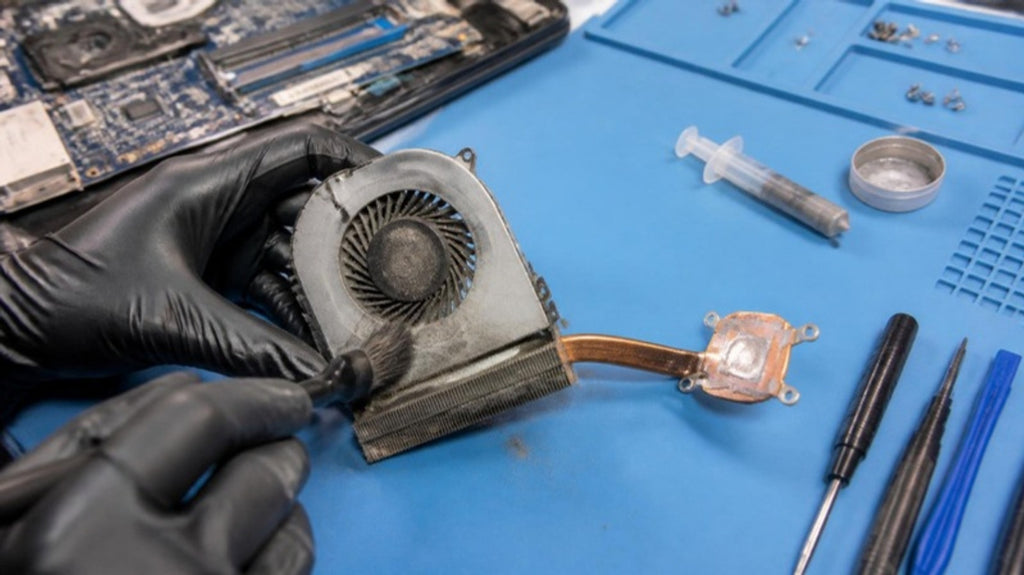
A laptop that runs hot isn't always broken. Under heavy load, every laptop warms up and the fan spins faster. The time to pay attention is when it's hot doing ordinary things, when the fan is roaring while you're only browsing, or when it shuts itself off without warning.
Those symptoms have several possible causes, and they're worth separating before anyone opens the case. Some are free fixes. Some need a technician. A few mean you should switch the machine off and get your files safe first. (For a seasonal look at keeping a laptop or Mac cool, see our spring-clean guide for Melbourne's summer heat.)
Why laptops get hot (and when it's normal)
A laptop's processor and graphics chip produce heat that has to be carried away by a heatsink and fan, through vents in the case. When any part of that chain is blocked, worn or working harder than it should, temperatures climb. To protect itself, the laptop slows down (so it feels sluggish) and, if things get bad enough, shuts down.
Warm to the touch under load is normal. Uncomfortably hot while idle, repeated shutdowns, or a burning smell are not.
Start with the simple, safe checks
Dell's own support guidance on overheating starts with the basics, and they apply to most brands.
Airflow and where the laptop is sitting
Laptops breathe through vents on the bottom or sides. Using one on a bed, couch or lap can block them. Put it on a hard, flat surface and see whether the heat and fan noise settle.
What's running in the background
Open Task Manager (Ctrl + Shift + Esc) and look at what is using the CPU. A runaway program, a stuck update or too many startup items can keep the processor busy and the fan spinning. Close what you don't need and see whether the temperature behaves.
Drivers, BIOS and power settings
Manufacturers publish chipset, thermal-management and BIOS updates, and some laptops have a performance-focused cooling mode that runs hotter and louder. Dell's guide, for example, points to checking its thermal software and setting BIOS thermal options to a balanced mode, and iFixit's guide for one HP model suggests the same. Check your own manufacturer's support page for your exact model rather than downloading drivers from random sites.
These steps are about software and settings. If they don't change anything, the cause is more likely physical.
Signs the problem is physical
Dust and blocked vents
Over a couple of years, dust and pet hair can build up on the fan and the heatsink fins. Symptoms are heat that builds slowly over months, a fan that's constantly working and hot air that barely comes out of the vents. Cleaning inside the case is a job that's easy to get wrong on a thin laptop, since there are fragile ribbon cables, screws that differ in length and, on many models, soldered parts close by.
A fan that's loud, slow or silent
Listen with the laptop warm. A fan that grinds, rattles, spins up and down erratically, or doesn't seem to run at all needs attention. Many Dell laptops include a built-in fan test you can run by pressing F12 at start-up (the ePSA diagnostic), and other brands have similar tools. If the test fails, the fan or heatsink assembly needs replacing.
Dried thermal paste
Thermal paste fills the tiny gap between the processor and the heatsink so heat can pass across. On older laptops it can dry out and stop working well, which shows up as a laptop that overheats under load even when the fan and vents are clear. iFixit lists degraded paste as one of the causes to check and replaces it with fresh paste after cleaning. It's a standard workshop job, but it does need the heatsink removed and the surfaces cleaned properly.
When heat and shutdowns point to the motherboard or battery
If the vents are clean, the fan runs, the paste has been renewed and the laptop still overheats or switches off, the cause may be electrical. Examples a technician looks for include a power or charging circuit drawing more current than it should, a failing component on the board getting hot by itself, or a battery that can no longer deliver steady power.
You can't diagnose these by feel. They're found by measuring: checking how much current the laptop draws, how the power rails behave and where on the board heat is coming from. In some cases the fault can be repaired at component level, with microsoldering, rather than replacing the whole board. It depends on which part has failed and how much damage there is, so it's a conversation after diagnosis, not before.
Software can add to the picture too. In July, Microsoft released an emergency update for some Dell models after reports of shutdowns and overheating linked to an earlier update interacting badly with a thermal driver. That only affected specific models, so it is not a general explanation, but it's a reminder that heat problems aren't always dust. (We covered it in our Dell update article.)
Stop and get it checked if…
Dell's guidance lists several situations where you should stop troubleshooting and contact support: the fan doesn't spin or stays unusually loud, the laptop overheats after the usual steps, or there are safety signs such as a swollen case, a burning smell or excessive heat after shutdown. We'd add one more: if the laptop holds files you can't replace, back them up now, or bring it to us before it's been forced off repeatedly.
A swollen battery is a safety issue. Stop using and charging the laptop and don't press on the case. Our guide to swollen Windows laptop batteries explains the warning signs.
What we do at our Carrum Downs workshop
We start with diagnostics rather than guesses. That means testing the fan and cooling system, checking temperatures under load, testing the battery and charging circuit, and, where the signs point that way, measuring the power circuits on the motherboard. Once we know the cause — dust, a fan, thermal paste or a board-level fault — we explain what's wrong and what the repair options are, including data recovery first where needed.
We look after Windows laptops and Macs for customers across Carrum Downs, Frankston, Cranbourne, Lyndhurst, Langwarrin, Seaford, Skye and Patterson Lakes. See our laptop repairs page, or our data recovery service if files matter.
Frequently Asked Questions
Is it normal for my laptop to get hot?
Warm under load is normal. Very hot while idle, constant loud fan noise or sudden shutdowns are not.
Can I fix overheating myself?
The safe first steps are airflow, background programs, drivers and power settings. Opening the case is best left to a technician on most modern laptops.
How do I know if the fan has failed?
Listen when the laptop is warm. Grinding, rattling, erratic speed or no sound at all are warning signs. Some brands have a built-in fan test at start-up.
Will new thermal paste fix my laptop?
It can, if dried paste is the cause. If the fan, vents or board are at fault, it won't.
My laptop shuts off by itself. Is my data at risk?
Repeated forced shutdowns can make an underlying fault worse. Back up if you can, and get it checked.
Does this apply to MacBooks?
Much of it does, but the repair approach differs. See our guide to a Mac running slow or overheating.
Laptop running hot or switching itself off? Call Macrotech on 03 8759 1801 or book online. 50 Titan Drive, Carrum Downs (Mon–Fri 10–5, Sat 10–2). Mail-in repairs are available for outlying suburbs.
Book a DiagnosticMacrotech Solutions is an independent computer repair centre and is not affiliated with, endorsed by or sponsored by Dell, HP, Microsoft, Apple or any device manufacturer. Brand names are used only to describe compatible devices and published guidance.