

Spring-Clean Your Laptop or Mac Now — Before Melbourne's Summer Heat Hits
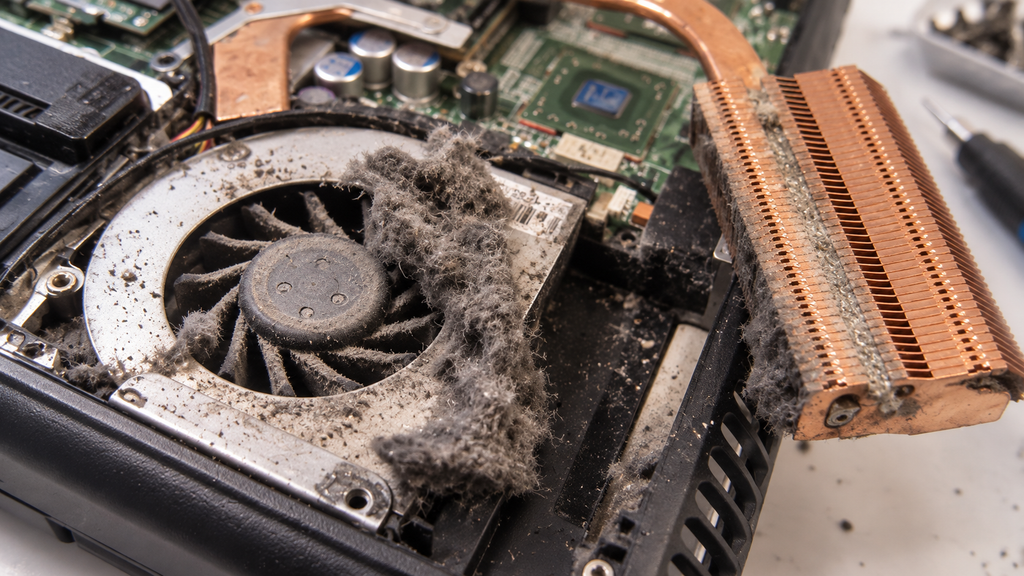
Every summer, Macrotech sees the same pattern: call-outs for overheating laptops and Macs spike in January and February, right when Melbourne hits its hottest stretch. Almost every one of those machines has the same root cause sitting inside it — months, sometimes years, of dust packed into the fan and heatsink. Spring is the ideal window to deal with it, while temperatures are still mild and before the problem becomes urgent.
This isn't a scare story. A laptop or Mac that's cleaned out properly before summer will run cooler, quieter, and last longer — and for most people, it's a straightforward job. This guide covers what dust actually does inside your machine, the warning signs to look for, what you can safely do yourself, and when it's worth booking a professional clean-out instead.
Why Spring Is the Right Time to Deal With This
Heat is the multiplier that turns "a bit dusty" into "shutting down mid-task." A laptop that copes fine with light dust build-up in cooler months can struggle badly once ambient temperatures climb into the 30s. Melbourne typically sees several days each summer where the mercury pushes past 38–40°C, and the Bureau of Meteorology's long-range outlook points to a good chance of above-average daytime temperatures across Victoria this coming summer — though this is an indicative seasonal outlook, not a guaranteed forecast. Add that heat on top of a fan that's already fighting a layer of dust, and marginal cooling systems tip over into real faults: thermal shutdowns, throttled performance, or in worse cases, heat stress on the battery or nearby board-level components.
Doing the clean-out now, in spring, means there's no pressure and no risk of the machine already running hot when you open it up.
What Dust Actually Does Inside a Laptop or Mac
Laptops and Macs pull air in through vents to cool the processor and battery, using a fan (or two, in most modern Windows laptops) to push heat out through a narrow exhaust. Dust, pet hair and general household debris get drawn in with that airflow and settle on the fan blades and heatsink fins — the two parts that matter most for cooling.
Once dust packs into the heatsink fins, it acts like insulation: it blocks the very airflow that's supposed to carry heat away. The fan has to spin faster and longer to compensate, which is often the first sign people notice — a laptop that used to be near-silent is suddenly audibly working hard just to browse the web. Eventually the fan can't keep up, internal temperatures climb, and the system either throttles performance to protect itself or shuts down outright.
Warning Signs Your Computer Needs Attention Now
- The fan runs loudly and constantly, even during light tasks like web browsing or email.
- The laptop feels noticeably hot on the base or near the keyboard, particularly around the back hinge or vents.
- Performance slows down the longer you use it, then improves again after it's had time to cool down.
- The computer shuts down unexpectedly, especially during demanding tasks or on hot days.
- Vents are visibly clogged with dust, lint or pet hair when you look into them.
If you're seeing more than one of these, it's worth acting before summer rather than waiting for the first heatwave to force the issue.
Safe DIY Cleaning — What You Can Do at Home
For most laptops and Macs, external cleaning is safe to do yourself and takes about ten minutes.
For Windows Laptops
Shut the laptop down and unplug the charger first. Use a can of compressed air on its lowest setting, held a few centimetres away from the vents, in short bursts rather than one long blast. Aim into the exhaust vents (usually along the side or back) and any visible intake vents on the base. Angle the can so you're pushing dust out, not further into the machine, and hold the fan blades still with a cotton swab if you can see them through the vent, so the compressed air doesn't spin them faster than they're designed to turn. Microsoft's own guidance for keeping laptops cool recommends this same approach, alongside making sure the laptop sits on a hard, flat surface rather than a bed, couch or lap where vents can be blocked entirely.
For MacBooks, iMacs and Mac Minis
The same compressed-air approach works for MacBook intake vents (typically along the hinge or base) and for iMac and Mac mini rear vents. Apple's official cleaning guidance recommends using compressed air in short bursts and avoiding aerosol sprays, bleaches or abrasive cloths anywhere near the machine. For the screen and case, a soft, lint-free cloth lightly dampened with water is Apple's recommended method — never spray liquid directly onto the machine.
What Not to Do (Common Mistakes That Cause Damage)
- Don't use a household vacuum cleaner on or near vents. The suction can build static electricity, which is a real risk to internal components, and vacuum nozzles can also physically damage delicate fan blades.
- Don't open the case yourself unless you're confident and the machine is out of warranty. Modern MacBooks and many thin Windows laptops use adhesive-sealed batteries and delicate ribbon cables that are easy to damage without the right tools.
- Don't spray liquid cleaners directly onto the machine. Liquid finding its way past the keyboard or vents is one of the most common causes of liquid damage we see — a problem that's often far more expensive to fix than the dust ever would have been.
- Don't blast compressed air in long, continuous bursts. This can spin fan blades well beyond their normal speed and, in rare cases, damage the fan motor.
When It's a Cleaning Job vs a Repair Job
External cleaning through the vents helps, but it can only reach so far. If a laptop or Mac is still running hot after a proper external clean, or if it's more than two to three years old and has never been opened up, the dust is likely packed inside the heatsink itself — somewhere compressed air from the outside can't reach. That's a job for someone who can safely open the case, remove the fan and heatsink assembly, clean it properly, and in many cases replace dried-out thermal paste on the processor at the same time, which restores cooling performance that simple dust removal alone won't fix.
If your laptop or Mac is shutting down unexpectedly, showing consistent thermal throttling, or the fan sounds like it's struggling even right after a clean, that's a sign to get it looked at rather than keep pushing through summer.
Worth knowing: sustained overheating doesn't just affect the fan and battery — prolonged heat stress on the board itself is one of several contributing factors behind logic-board and motherboard faults over a device's lifetime. A clean-out is one of the cheapest things you can do to protect the more expensive components inside.
How Macrotech's Preventative Clean-Out Works
At our Carrum Downs workshop, a preventative clean-out includes opening the machine safely, removing built-up dust from the fan and heatsink, checking thermal paste condition, and testing temperatures under load before and after — so you know the fix actually worked, not just that it was cleaned. It's a good option ahead of summer for any laptop or Mac that's a few years old, runs hot, or has never had one before. As an independent repair centre, we service MacBook, iMac, Mac mini and Windows laptops and desktops from all major brands, and we're not affiliated with Apple, Microsoft or any device manufacturer.
If you're in Carrum Downs, Frankston, Cranbourne, Lyndhurst, Langwarrin, Seaford, Skye, Patterson Lakes or nearby southeast Melbourne suburbs, drop in for a free diagnostic or book a clean-out before the first heatwave hits.
Beat the summer rush
Book a free diagnostic or preventative clean-out now, while there's no pressure and no queue.
Book a Clean-OutFrequently Asked Questions
How often should I clean the dust out of my laptop?
Most manufacturer guidance recommends an external clean around every six months in a typical home, and more often if you have pets, live somewhere dusty, or use the laptop on carpet or bedding regularly. A full internal clean-out (opening the case) is usually worth doing every one to two years for laptops that see daily use.
Can dust actually damage my computer, or does it just make it noisy?
Both. In the short term it makes the fan work harder and louder. Left long enough, especially through a hot Melbourne summer, it can cause thermal throttling, unexpected shutdowns, and in more serious cases, heat stress on the battery or surrounding components.
Is it safe to use compressed air on a MacBook?
Yes, used correctly — short bursts, held a few centimetres from the vents, on the lowest setting. Apple's own support guidance recommends compressed air for external cleaning; it's aerosol sprays, liquids and vacuum cleaners that carry the real risk.
My laptop is already shutting down in the heat — is it too late for a simple clean?
Not necessarily, but it does mean the dust build-up has likely gone past what external cleaning alone can fix. That's a sign to get it professionally opened up and cleaned rather than wait and see if it gets worse.
Do you clean both Windows laptops and MacBooks?
Yes. As an independent repair centre we service MacBook, iMac and Mac mini as well as Windows laptops and desktops from Dell, HP, Lenovo, ASUS, Acer, MSI and other major brands.
Independence disclaimer: Macrotech Solutions is an independent repair centre and is not affiliated with Apple, Microsoft, or any device manufacturer. All product names and trademarks belong to their respective owners.
Related Macrotech guides: Mac running slow or overheating · Windows laptop running slow · Mac mini or iMac not turning on · MacBook battery draining or overheating · Microsoldering explained