

Why Is Your Windows Laptop Running Slow? How to Diagnose High CPU, Disk and Memory Usage
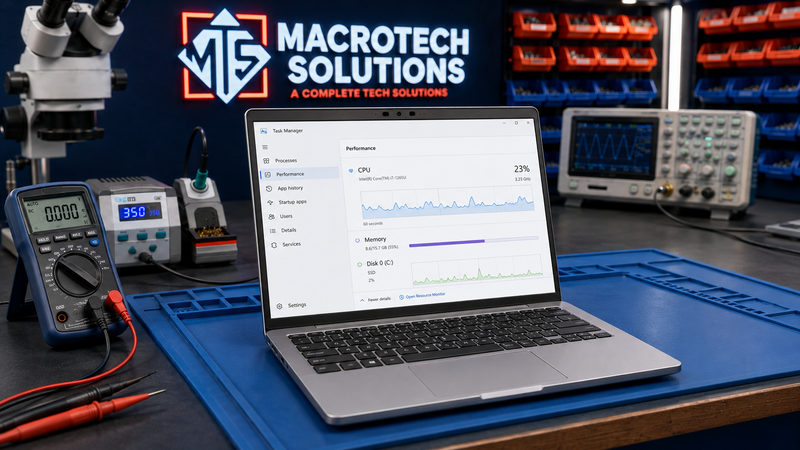
If your Windows laptop has gone from snappy to sluggish, the cause is almost always one of a small number of things — and most of them show up within about 60 seconds of opening the right tool. Before you assume the worst, it's worth ruling out the easy explanations first, because a genuine hardware fault is actually one of the less common causes.
Here's how to work out what's actually going on, and when it's worth booking a proper diagnostic instead of continuing to guess.
The 60-Second Check — Open Task Manager First
Right-click the taskbar (or press Ctrl+Shift+Esc) and open Task Manager. Click the "Processes" tab and sort by CPU, then by Disk, then by Memory. In most cases, whatever is slowing the laptop down is visible immediately as a process sitting near 90–100% on one of those columns. If nothing stands out and usage looks normal across the board even while the laptop feels slow, that's actually a more useful clue — it starts to point toward a hardware bottleneck rather than a runaway process.
The Four Most Common Software Causes
Background apps and startup bloat
Every app that launches automatically at sign-in competes for CPU and memory before you've even opened anything. Cloud sync tools, chat apps, and pre-installed manufacturer software are common offenders. Task Manager's "Startup apps" tab shows the impact rating for each one.
Windows Update working in the background
After a Windows 11 update installs, the system spends time on indexing, file optimisation and background syncing — this is normal and usually settles down within a day or two once installation and indexing finish. If disk usage is pinned at 100% right after an update, letting it finish is often the simplest fix.
Malware or adware
Unexplained CPU usage from an unfamiliar process name, browser pop-ups, or a sudden jump in fan noise and data usage are all signs worth taking seriously. A full scan with Windows Security (built in) or a reputable second-opinion scanner is a sensible first step.
A nearly-full or ageing drive
Windows needs free space to manage virtual memory and temporary files efficiently. A drive that's over roughly 90% full will often feel sluggish even with a fast processor, simply because the operating system has nowhere to work.
When Slowness Is Actually a Hardware Problem
If the software causes above don't explain it — or you've already ruled them out — the next place to look is the hardware itself.
A failing SSD or hard drive
This is the hardware cause we see most often at the bench. A failing drive doesn't always throw an obvious error — early symptoms are often just general slowness, apps taking longer to open, or the system occasionally freezing for a few seconds. Many of the same warning signs apply here as in our SSD failure guide.
Thermal throttling from dust or a dying fan
Modern CPUs deliberately slow themselves down when they get too hot, to protect the chip. If the laptop feels hot, the fan is loud or barely audible when it should be working hard, or performance drops further the longer it's been running, dust build-up or a failing fan and heatsink assembly is a likely cause. Left unaddressed, persistent overheating can also damage solder joints and power-delivery components over time — covered in more detail in our motherboard failure guide.
An ageing battery forcing power-saving mode
A battery that's lost significant capacity can cause Windows to throttle performance to compensate, particularly on battery power. If Battery Report (powercfg /batteryreport in Command Prompt) shows a big gap between design capacity and full charge capacity, that's a strong indicator.
Signs it's likely hardware, not just clutter
- Task Manager shows normal CPU/disk/memory usage, but the laptop still feels sluggish
- The laptop runs hot or the fan is unusually loud even during light use
- Battery drains much faster than it used to
- Occasional freezes, or apps that take far longer than usual to open
- The slowness has been getting gradually worse over weeks or months, not sudden
Safe DIY Steps to Try First
- Restart the laptop properly (not just sleep it) to clear memory leaks.
- Disable unnecessary startup apps in Task Manager's "Startup apps" tab.
- Run Disk Cleanup or Storage Sense to free up space.
- Check for and install any pending Windows updates, so background work finishes.
- Run a full malware scan with Windows Security or a reputable scanner.
These take about fifteen minutes and resolve a genuine majority of "slow computer" complaints we hear about.
When to Stop Troubleshooting and Book a Diagnostic
If you've tried the steps above and the laptop is still slow — especially if it's also running hot, the fan is unusually loud, the battery drains quickly, or Task Manager shows normal usage but everything still feels sluggish — it's worth having it looked at properly rather than continuing to guess. A proper diagnostic can confirm drive health, thermal performance and battery condition in one visit, which is often faster and cheaper than replacing parts on a hunch.
Worth knowing: we regularly test laptops that customers assumed just needed "a clean-up," only to find a drive that's already partially failed, or a cooling system clogged enough to be shortening the CPU's lifespan. Catching it early is usually cheaper than waiting for it to fail completely.
Slow Laptop Repairs in Carrum Downs and Southeast Melbourne
We run full diagnostics on Windows laptops and desktops at our Carrum Downs workshop, covering SSD and drive health, cooling and thermal performance, battery condition and power-delivery faults. We regularly see this exact pattern from customers across Carrum Downs, Frankston, Cranbourne, Lyndhurst, Langwarrin, Seaford, Skye and Patterson Lakes — a laptop that's "just slow" turning out to have a specific, fixable cause once it's actually tested.
Still slow after trying the basics?
Book a full diagnostic and we'll tell you exactly what's causing it — before any repair goes ahead.
Book a DiagnosticFAQs
Will a factory reset fix a slow laptop?
Is it normal for a laptop to be slow right after a Windows update?
Can too many browser tabs really slow down the whole laptop?
How do I know if it's the SSD and not something else?
Macrotech Solutions is an independent computer repair specialist and is not affiliated with, endorsed by, or sponsored by Microsoft or any laptop manufacturer mentioned in this article.