

MacBook Won't Charge Past 80%? Here's What's Actually Happening
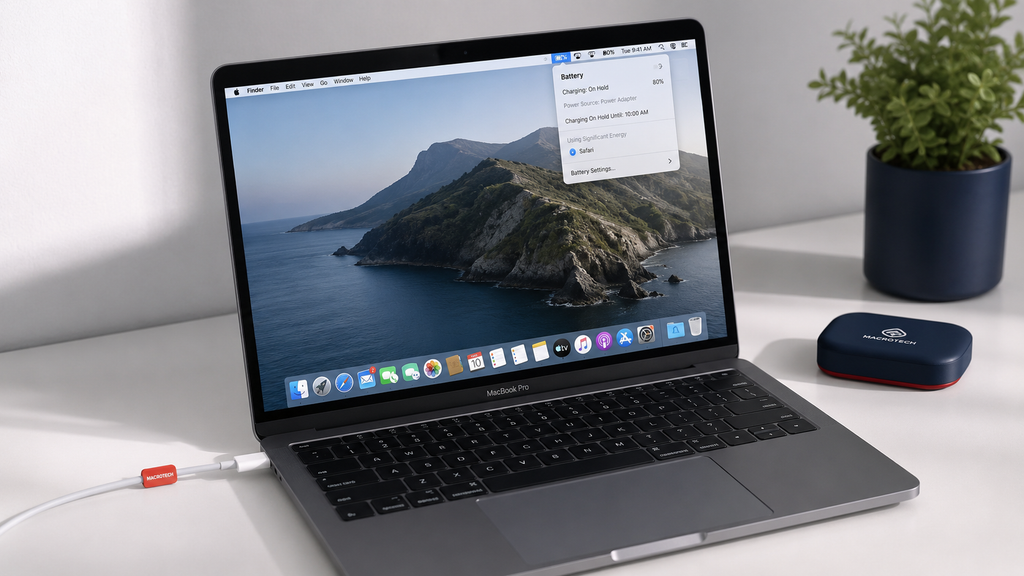
If your MacBook stops charging at 80% and won't budge overnight, don't panic — in most cases nothing is broken. It's almost always a deliberate battery-health feature, not a fault. This guide explains exactly what's happening, how to tell the difference from a genuine charging problem, and what to do about each.
It's Probably Not a Fault — It's a Feature
Apple builds two related battery-management tools into modern macOS: Optimised Battery Charging and, since macOS Tahoe 26.4, a manual Charge Limit setting. Both are designed to slow down long-term battery wear, and both can leave your MacBook sitting at 80% for hours, even plugged in overnight (Apple Support, "About Optimized Battery Charging and Charge Limit on Mac," ongoing support article, support.apple.com/en-us/102338).
What Optimised Battery Charging does
Optimised Battery Charging uses on-device machine learning to learn your daily routine. If it predicts you'll be plugged in for a long stretch — say, at your desk overnight — it pauses charging at around 80% and only tops up to 100% shortly before it expects you'll unplug and head out. Apple's own documentation states this reduces the time your battery spends fully charged, which is the single biggest driver of chemical battery ageing (Apple Support, HT212050/102338).
What Charge Limit does (macOS Tahoe 26.4 and later)
Charge Limit is a more direct version of the same idea. Instead of macOS predicting your routine, you manually set a ceiling — 80%, 100%, or a step in between — in System Settings → Battery → Charging. Once set, your Mac stops charging within a few percentage points of that limit and stays there until you either unplug or choose "Charge to Full Now." This feature rolled out with macOS Tahoe 26.4 earlier in 2026 and has been widely covered by outlets including Macworld and MacRumors, and it's what a growing number of MacBook, MacBook Air and MacBook Neo owners are seeing reported this week (OS X Daily, "Why MacBook Stops Charging at 80% and How to Fix It," 30 July 2026, osxdaily.com).
How to Tell the Difference: Normal Behaviour vs a Real Fault
The trouble is that "stuck at 80%" genuinely can also describe an early symptom of a real charging or battery problem — which is why so many people aren't sure whether to relax or worry. Here's the practical way to tell them apart.
Quick self-check
Likely just the feature
Menu bar battery icon reads "Charging — On Hold" or similar. Charging resumes fine when you choose "Charge to Full Now." Battery Health in System Settings shows "Normal." No other symptoms (no shutdowns, no swelling, no unusual heat).
Worth getting checked
Charge percentage drops even while plugged in. "Charge to Full Now" doesn't work or the number won't move at all. Battery Health shows "Service Recommended." Case feels warm/bulging, trackpad has lifted, or the Mac shuts down unexpectedly on battery.
When 80% Really Is a Problem
Battery health has genuinely degraded
Every lithium-ion battery loses capacity over hundreds of charge cycles. If System Settings → Battery → Battery Health reports "Service Recommended" rather than "Normal," the battery itself has aged past Apple's expected capacity threshold — a separate issue from Optimised Charging, and one we cover in detail in our MacBook battery "Service Recommended" guide, including when a swollen battery becomes a safety issue.
A charging port, cable or adapter fault
If charging stalls or drops out intermittently regardless of what Battery Health says, the cause is often physical rather than software — a worn USB-C port, damaged cable, or failing power adapter. We walk through what's actually happening inside the charging path in our laptop charging basics explainer.
A logic-board or charging-IC fault
Less commonly, a MacBook that won't charge past a low percentage — or won't charge at all — points to a fault on the logic board itself, such as a failed charging IC. This is the category that needs a technician, not a settings change. Our guide on diagnosing a MacBook that won't turn on covers how we tell a board-level fault apart from a simple charging issue.
How to Check Your Mac's Battery Health in 30 Seconds
- Click the Apple menu → System Settings → Battery
- Select "Battery Health" (or "Usage Details" on older macOS versions)
- Confirm it reads "Normal" rather than "Service Recommended"
- Check "Charging" settings to see if Optimised Battery Charging or a Charge Limit is switched on
- If you want a full charge right now, choose "Charge to Full Now" from the battery menu-bar icon
Local Relevance: Carrum Downs and South-East Melbourne
We see this exact question at the bench several times a month across Carrum Downs, Frankston, Cranbourne, Lyndhurst, Langwarrin, Seaford, Skye and Patterson Lakes — usually from a customer convinced their charger has failed, when a quick look at Battery Health settles it in under a minute at no charge. If it turns out to be a genuine fault, our team can confirm whether it's the battery, the charging port, or a logic-board issue and quote a fair, transparent repair price on the spot. See our Carrum Downs computer repairs, Frankston Mac repairs and Mornington & Mount Eliza Mac repairs pages, or use our mail-in repair service if you're further afield.
Not sure if it's a setting or a real fault?
Bring it in for a free battery and charging diagnostic — no guesswork, no obligation.
Book a Free DiagnosticFrequently Asked Questions
Is it bad for my MacBook to sit at 80% charge for long periods?
No — the opposite is true. Lithium-ion batteries age faster when they're kept near 100% for long stretches, especially while plugged in. Sitting at roughly 80% is one of the best states for long-term battery health, which is exactly why Apple built the feature in.
How do I turn off Optimised Battery Charging or Charge Limit?
Go to System Settings → Battery → Charging and switch Optimised Battery Charging off, or move Charge Limit back to 100%. We'd only recommend this if you specifically need a full charge available at all times, since disabling it will shorten your battery's usable lifespan over time.
What's the difference between Optimised Battery Charging and Charge Limit?
Optimised Battery Charging (available on all recent Macs) predicts your routine using on-device machine learning and adapts automatically. Charge Limit (macOS Tahoe 26.4 and later) lets you manually set a fixed percentage ceiling instead of relying on prediction. You can use either, but not usually both at once.
My Mac says "Battery Service Recommended" — is that the same thing?
No, and this is the important distinction. "Service Recommended" means the battery's actual maximum capacity has degraded below Apple's expected threshold — a hardware condition, not a charging setting. If you see this message, read our dedicated battery warning guide or bring it in for a check.
When should I actually bring my MacBook in for a charging check?
If "Charge to Full Now" doesn't work, the percentage drops while plugged in, Battery Health shows "Service Recommended," the case feels warm or the trackpad has lifted, or the Mac shuts down unexpectedly on battery — any of these are worth a diagnostic rather than assuming it's the 80% feature.
Macrotech Solutions is an independent computer and Apple device repair centre and is not affiliated with, authorised by, or sponsored by Apple Inc. "MacBook," "macOS" and related marks are trademarks of Apple Inc. Information in this article is general in nature; always back up your data before any repair.