

MacBook Won't Boot or Stuck in Recovery Mode? It Could Be the T2 Chip
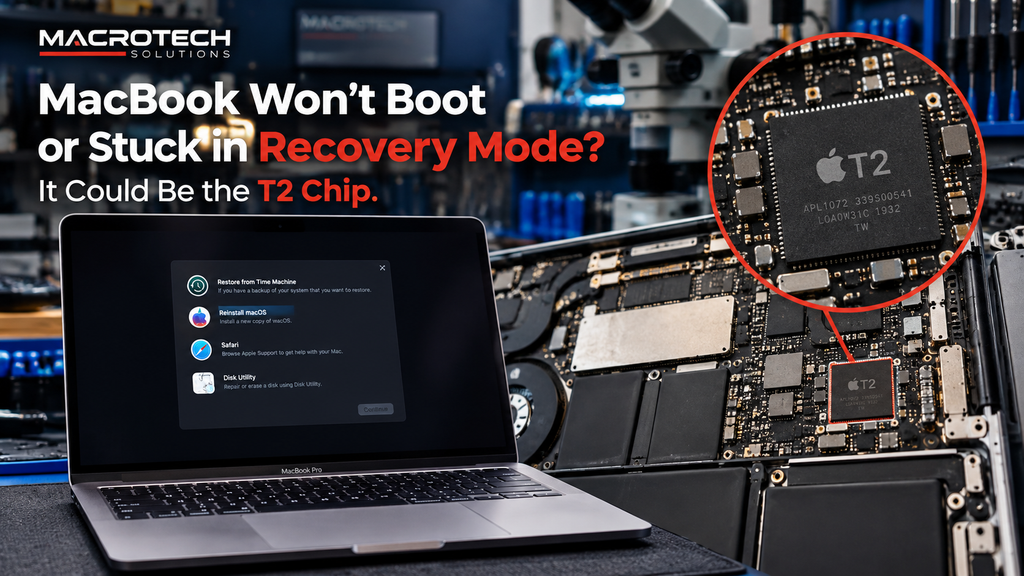
If your MacBook is looping back to the recovery screen, hanging on the Apple logo, or has forced you into DFU mode after an update or a hard shutdown, the cause on a 2018–2020 Intel Mac is very often tied to the T2 Security Chip — and the wrong next step can cost you your files.
It's a stressful moment: the machine won't finish starting up, macOS Recovery keeps reappearing, or Apple Configurator has told you the Mac needs to be revived or restored. Before you click anything, it's worth understanding what the T2 chip actually does and why the button you press next matters more than it looks.
What the T2 Chip Actually Does
The Apple T2 Security Chip is a separate controller Apple built into a range of Intel Macs between 2018 and 2020. It doesn't just handle Touch ID and the secure enclave — it also acts as the storage controller for the internal SSD and manages full-disk encryption in the background. Because the SSD's encryption keys are tied to that specific T2 chip, the chip's own firmware has to start up cleanly before the rest of macOS can even begin loading. When that firmware layer gets corrupted, confused by a failed update, or the chip's supporting hardware develops a fault, the whole machine can get stuck before macOS itself is ever reached.
Signs Your MacBook's T2 Chip Might Be the Problem
- The Mac boots straight into macOS Recovery every time, even after choosing "Restart"
- It hangs on the Apple logo or a spinning gear/progress bar that never completes
- You see "macOS could not be installed" or "This disk is currently formatted as APFS" errors during recovery
- Apple Configurator or Finder reports the Mac has entered DFU mode on its own
- A normal SMC reset, NVRAM reset or Safe Mode boot doesn't change anything
- The problem appeared right after a macOS update or a sudden shutdown/power loss
Which Macs Have a T2 Chip (2018–2020 Models)
| Model | Years with T2 chip |
|---|---|
| MacBook Air (13-inch, Retina) | 2018, 2019, 2020 (Intel models only) |
| MacBook Pro 13-inch | 2018, 2019, 2020 |
| MacBook Pro 15-inch | 2018, 2019 |
| MacBook Pro 16-inch | 2019 |
| Mac mini | 2018 |
| iMac 27-inch (Retina 5K) | 2020 |
| iMac Pro, Mac Pro | 2017–2019 |
M1 and later Apple Silicon Macs don't have a separate T2 chip — those security and storage-controller functions are built into the main chip, so this specific fault pattern is unique to the Intel-era models above. If you're weighing up whether to repair or eventually replace one of these ageing Intel Macs, our earlier article on macOS Tahoe being the last major update for Intel Macs covers the bigger picture.
Why a Normal SMC/NVRAM Reset Often Doesn't Fix It
An SMC or NVRAM reset addresses power management and a handful of stored settings on the main logic board — it has no effect on the T2 chip's own internal firmware or its link to the SSD's encryption keys. That's why customers often tell us they've already "tried everything" — held down every key combination, reset the SMC twice, left it charging overnight — with no change. If the fault sits inside the T2 chip's own boot process, those steps were never going to reach it.
DFU Mode: Revive vs Restore — The Button That Decides Whether You Keep Your Data
Once a T2 Mac is confirmed to be in DFU mode, Apple Configurator on another Mac presents two options, and they are not interchangeable.
Revive reinstalls the Mac's internal BridgeOS/firmware layer without touching the user's files, apps or settings. It's the option to try first.
Restore wipes the entire internal drive and sets the Mac up as new, exactly like a factory reset. Because the storage is cryptographically bound to that individual T2 chip, this is not something that can be casually undone afterwards.
According to Apple's own firmware revive/restore documentation, Revive is the appropriate first step for a Mac that's stuck but was previously working normally. In our experience, and as repair-industry specialists such as Rossmann Group's T2 data recovery notes point out, Restore is sometimes reached for first simply because it's the faster fix — and it's the one that can permanently remove access to photos, documents and business files that were never backed up.
When It's a Software Fault vs a Hardware (Board-Level) Fault
Most T2 boot-loop cases are firmware-level and resolve with a careful Revive. But the T2 chip itself is soldered to the logic board and isn't reprogrammable the way ordinary firmware is — if the chip or the circuitry feeding it (power rails, clock lines, connected components) has actually failed, no amount of DFU restoring will bring the Mac back, because the chip can't complete its own startup sequence to even accept the restore. That's the point where the fault moves from a software fix to a logic-board-level diagnosis, and potentially component-level microsoldering repair rather than a straightforward software reset.
What Happens When You Bring It to Macrotech
We start every T2/boot-loop case the same way: diagnose before we touch anything that could affect your data. That means identifying whether the fault is firmware-level (fixable with a careful Revive) or board-level (requiring logic-board diagnosis and, where the SSD itself is still intact, prioritising data recovery before any repair step that could affect it).
Carrum Downs & Southeast Melbourne Relevance
The 2018–2020 Intel MacBooks most likely to hit this exact fault are now five to eight years old — a very common age bracket among the machines we see from Frankston, Cranbourne, Lyndhurst, Langwarrin, Seaford, Skye and Patterson Lakes households and small businesses. If yours is stuck on the Apple logo or looping through recovery, our Mac repair service in Carrum Downs can diagnose whether it's a quick firmware fix or a board-level fault before any drive-wiping step is taken, and our data recovery service is available if files need to be secured first.
Frequently Asked Questions
Will I lose my files if my MacBook is stuck in recovery mode?
Not automatically. Being stuck in recovery or a DFU loop does not by itself erase your data. Data loss usually happens when someone chooses "Restore" instead of "Revive" in Apple Configurator, or attempts a full reinstall without first checking whether the files can be recovered. Have the drive assessed before any restore is attempted.
What's the difference between DFU Revive and Restore?
Revive reinstalls the Mac's internal BridgeOS/firmware without touching your files or user data. Restore wipes the entire internal drive and sets the Mac up as new. On a T2 Mac, the storage is cryptographically tied to that specific T2 chip, so Restore is not easily reversible.
Which MacBooks have a T2 chip?
Most Intel Macs sold between 2018 and 2020, including the 2018–2020 13-inch MacBook Air, 2018–2020 13-inch MacBook Pro, 2018–2019 15-inch MacBook Pro, 2019 16-inch MacBook Pro, plus the 2018 Mac mini, 2020 27-inch iMac, iMac Pro and 2019 Mac Pro. M1 and later Apple Silicon Macs do not have a separate T2 chip.
Can a T2 chip actually fail as a hardware fault?
Yes. The T2 chip itself is not reprogrammable in the way regular firmware is, so when the chip or its supporting circuitry on the logic board has failed, a software-level DFU restore will not fix it and the machine needs board-level diagnosis.
Does Macrotech charge to diagnose a MacBook stuck in recovery mode?
A $50 diagnostic fee applies to all hardware-related diagnosis. If you proceed with the repair, this fee is waived. If the Mac isn't worth repairing or you choose not to proceed, the $50 diagnostic fee applies.
Stuck MacBook, uncertain whether it's a quick firmware fix or a board-level fault? Don't click "Restore" until you know.
Book a Diagnostic Call 03 8759 1801Macrotech Solutions is an independent computer and Mac repair specialist based in Carrum Downs, VIC. We are not affiliated with, authorised by, or sponsored by Apple Inc. Apple, MacBook, Mac mini and iMac are trademarks of Apple Inc.