


MacBook Says "Liquid Detected" in the USB-C Port? What to Do Before You Charge It Again
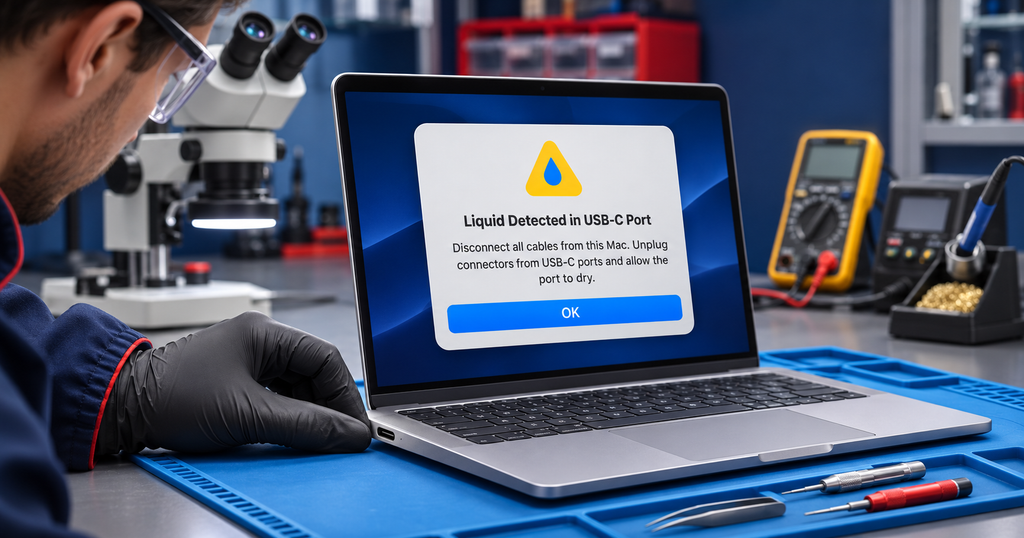
Newer MacBooks can warn you when they sense liquid in a USB-C port. The message is easy to dismiss, especially if you don't remember spilling anything, but the way you respond in the first day can decide whether this stays a minor annoyance or becomes a board repair.
Macrotech Solutions is an independent computer repair centre and is not affiliated with, endorsed by or an agent for Apple. Details come from Apple's published support pages linked below.
What the alert means
According to Apple's support guidance, the alert appears when you connect a USB-C cable or accessory and the Mac detects liquid in the port, or on the cable or accessory itself. On the MacBook Neo, the message can read "Charging not available", and charging and accessory connections stay unavailable until everything is dry.
It won't always mean a spill. Condensation, a damp bag, a wet cable end, a humid bathroom or a splash from a drink bottle can all be enough.
Which MacBooks show it
Apple lists the MacBook Neo, MacBook Air with M3, M4 or M5, and MacBook Pro models with the M3 Pro, M3 Max, M4 family and M5 family chips. It requires macOS Sequoia or later. Older MacBooks don't show this alert, which doesn't mean they're safe from liquid; it just means they can't tell you about it.
What Apple recommends right now
If the Mac or the accessory is wet
- Unplug the cable from the Mac and from the other end, and don't reconnect until both are completely dry.
- Shut the Mac down and disconnect it from all power sources.
- Leave it for at least a day, then check that the port looks dry before powering on and trying again.
- If the alert comes back, power down and leave it in a dry spot with airflow for another day.
If neither the Mac nor the accessory is wet
If the alert shows up every time with one particular cable, that cable or accessory may be damaged, so contact its maker. If it shows up with every Apple cable and accessory, Apple says to contact Apple Support.
What not to do
Apple specifically advises against using external heat, compressed air, cotton swabs or paper towels in the port, and putting the Mac in rice. Each one tends to make things worse: heat can drive moisture deeper or damage components, compressed air can push liquid further in, and swabs and paper can leave fibres or bend the pins. Rice doesn't pull moisture out of a sealed laptop and can add dust.
Also avoid "just trying the charger once more". Apple warns that charging a Mac with a wet port can corrode the pins and cause permanent damage.
Why charging a wet port is risky
A USB-C port carries power and data on very small contacts that sit a short distance apart. When liquid is present and power is applied, current can flow where it shouldn't, and corrosion can start on the pins. Corrosion can also spread towards the charging circuitry behind the port.
When it's more than a wet port
Get it checked if any of these are true:
- The alert keeps returning after two full days of drying.
- You know liquid got into the machine, such as a drink spilled on the keyboard.
- The Mac charges intermittently, gets hot at the port, or doesn't recognise a charger.
- It won't power on, or the screen flickers or goes dark.
- You notice anything unusual after the incident, even if it seemed to work at first.
Liquid damage can keep developing after the machine looks fine, and the longer corrosion sits, the harder repair gets. Our guides to a MacBook USB-C port not working and a MacBook that won't charge with a new charger cover the related faults.
What a technician checks
At our workshop we start by looking at the port and the board under a microscope for residue and corrosion, then measure the charging path to see where power stops. Depending on the findings, the fix might be a cleaned and tested port, a replaced USB-C connector, or component-level repair of the small chips and circuits behind it, rather than a whole new logic board. We explain what we found and quote before any work starts. A $50 diagnostic fee applies to hardware-related diagnosis and is credited toward the repair if you proceed.
Does warranty cover it?
Apple states that liquid damage isn't covered by its one-year limited warranty or the AppleCare Protection Plan, though an AppleCare plan for Mac that includes accidental damage protection may cover some situations, with a service fee and exclusions. Current Mac laptops also carry Liquid Contact Indicators that help show whether liquid has been present. Your consumer-law rights are separate, so check your terms or ask us if you're unsure.
MacBook repair help in Carrum Downs and south-east Melbourne
Our Carrum Downs workshop diagnoses and repairs MacBooks for customers in Frankston, Cranbourne, Lyndhurst, Langwarrin, Seaford, Skye, Patterson Lakes and nearby suburbs. If your MacBook has shown a liquid alert or has been near a spill, switch it off and call us on 03 8759 1801 or book a service online. See also our Mac repairs page and our guide to what to do after a spill.
Macrotech Solutions is an independent computer repair centre and is not affiliated with, endorsed by or an agent for Apple.
FAQs
Why does my MacBook say liquid was detected when it's dry?
Moisture from condensation or a damp cable end can trigger it. Follow Apple's drying steps and try again after at least a day.
Can I charge it with MagSafe or another port instead?
Apple's guidance is about the USB-C port and accessory. If you have any other sign of liquid inside the Mac, don't charge it at all and get it checked.
Is putting my MacBook in rice worth trying?
No. Apple lists it among the things to avoid.
How long should I wait before charging?
Apple says to wait at least a day, and another day if the alert returns.
Will Apple's warranty cover liquid damage?
Apple says the standard warranty and AppleCare Protection Plan don't, though an AppleCare plan with accidental damage protection may, subject to a fee and exclusions.
Can a liquid-damaged MacBook be repaired?
Often, depending on how far corrosion has spread. A diagnosis is the only reliable way to know.