

Why Did Your Mac Just Shut Down or Restart? Here's How to Find Out for Certain
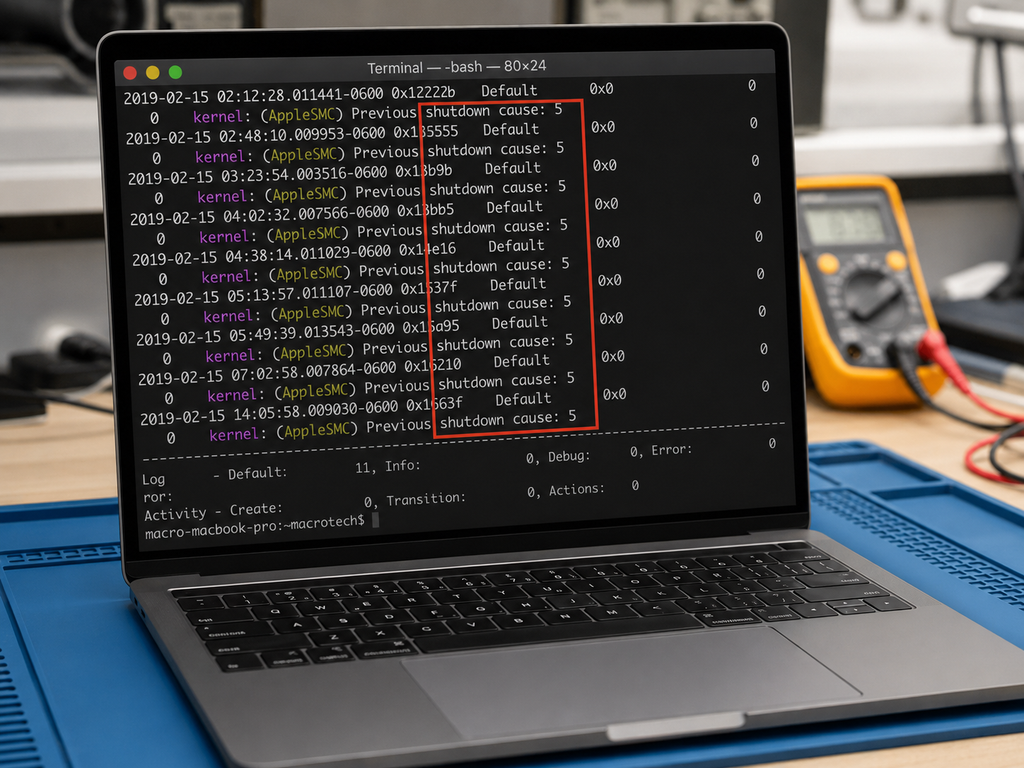
A Mac that shuts down or restarts with no warning is unsettling — but guessing at the cause usually wastes more time than it saves. macOS actually logs a specific code every time it shuts down or restarts, and that code is the fastest way to tell the difference between "nothing to worry about" and "get this looked at soon."
This is a genuine diagnostic step technicians use, and it's built into every Mac — no software to install, just a command in Terminal. Here's how to check it yourself, and what the result actually means.
Don't Guess — Ask Your Mac What Happened
Every time your Mac shuts down or restarts, macOS records the reason as a short numeric code in its system logs — Apple calls it the "shutdown cause." It's the same information a technician would pull up first during a diagnosis, and you can read it yourself in under a minute.
How to check it
- Open Terminal (found in Applications → Utilities, or search for it with Spotlight).
- Paste in this command and press Return:
- Look for a line ending in
Previous shutdown cause:followed by a number — that number is the code you need. - If nothing shows up, the shutdown may be further back than 24 hours. Swap
--last 24hfor--last 72h,--last 1w, or even--last 1Mto widen the search.

Running the shutdown-cause command in Terminal — the same first step we use in-workshop.
Tip: If your Mac struggles to sleep properly rather than shutting down, the same trick works with a different search term: log show --predicate 'eventMessage contains "Previous sleep cause"' --last 24h.
Reading the Result: What the Common Codes Mean
Once you have a number, here's what the most commonly seen codes indicate. This isn't the complete list Apple's engineering logs can produce, but it covers the causes we see most often in real machines.
| Code | What it means | What to do |
|---|---|---|
| 5 | A normal, clean shutdown | Nothing to do — this is what you'd expect from choosing Shut Down or Restart yourself. |
| 3 | A hard shutdown (power button held, or a forced reset) | Expected if you did this deliberately. If not, check the power button isn't sticking. |
| 0 | Power was disconnected | On a desktop, check the power cable and outlet. On a MacBook running on battery, this can point to a battery or charging-circuit fault. |
| -3 | A temperature sensor exceeded its safe limit | Check for blocked vents or fans not spinning up. Repeated occurrences suggest a cooling or thermal-paste issue. |
| -61 / -62 | An unresponsive app triggered an automatic shutdown or restart | Usually software, not hardware. Note which app was open at the time and check for updates. |
| -71 | Memory (RAM) temperature exceeded its limit | Try an SMC reset first. If it continues, the memory or logic board may need inspection. |
| -74 / -79 | Battery temperature or current reading out of range | Often points to a battery nearing end of life, or a charging-circuit fault presenting as a battery issue. |
| -75 / -78 | Communication or current issue with the charger | Try an official Apple charger and a different port if your model has USB-C on both sides. |
| -95 | CPU temperature exceeded its limit | Check airflow and fans. This is a common one on Macs used on soft surfaces like beds or couches. |
| -127 / -128 | Forced shutdown by the system controller, or a kernel panic recovery | If unexpected, this is worth a proper diagnosis — it can be end-of-life battery, power-button, or in rarer cases logic-board related. |
If your code isn't in this table, Apple Support's own troubleshooting page (linked below) covers the general causes, and we're always happy to interpret a specific code over the phone.
One Random Shutdown vs a Pattern — Does It Matter?
Yes, considerably. A single clean or hard-shutdown code (5 or 3) that matches something you remember doing isn't worth a second thought. The codes worth paying attention to are the thermal, power and battery-related ones — especially if the same code keeps showing up over several days. One thermal shutdown on a hot afternoon is normal. The same code every day for a week is a pattern, and patterns are what turn into a genuine fault if left alone.
What To Do Next, Depending on What You Found
Clean or hard shutdown, matches what you did: Nothing further needed.
Software/app-related code (like -61 or -62), one-off: Update the app in question, or run the machine in Safe Mode for a day to see if it recurs without third-party software loading.
Thermal, power or battery-related code, repeating: Try an SMC reset first (Apple's support site has the exact steps for your model). If the pattern continues afterwards, it's worth a proper diagnosis rather than repeated resets.
When It's Time for a Professional Diagnosis
An SMC reset and an app update cost you nothing and are worth trying first. Where we come in is when the pattern continues despite that — particularly power, battery or thermal codes that keep recurring, or any shutdown accompanied by a burning smell, visible swelling, or the machine feeling unusually hot to the touch (stop using it immediately in that case and bring it in). At that point the shutdown code tells us where to start looking, whether that's the battery, the charging circuit, or — less commonly — a logic-board level fault, without a lengthy guessing process.
- Same shutdown code repeating over several days
- Machine feels unusually hot before it shuts down
- Any burning smell or visible swelling near the trackpad or case
- Shutdowns happening more often even after an SMC reset
Local Relevance — Carrum Downs & Southeast Melbourne
We're an independent repair centre at 50 Titan Drive, Carrum Downs, and this exact diagnostic step is one of the first things we run when a MacBook, iMac or Mac mini comes in for unexplained shutdowns — whether you're calling from Carrum Downs, Frankston, Cranbourne, Lyndhurst, Langwarrin, Seaford, Skye, Patterson Lakes or nearby southeast Melbourne suburbs. If you've already checked your shutdown code and aren't sure what it means, call ahead and read it to us — we can often tell you over the phone whether it's worth bringing in.
Not sure what your shutdown code means?
Run the check above, then call us with the number — or book a diagnostic and we'll find the cause properly.
Book a DiagnosticFAQs
Is it bad if my Mac shuts down randomly once?
Do I need any special software to check the shutdown cause?
What if the command shows no result at all?
My code points to the battery or thermal sensors — do I need a new battery straight away?
Should I try an SMC reset myself before booking a repair?
Macrotech Solutions is an independent computer repair centre and is not affiliated with, endorsed by, or a representative of Apple Inc. References to Apple products, Terminal commands and Apple's official support guidance are provided for informational accuracy only. macOS shutdown-cause codes are drawn from Apple's system logging and long-documented by the independent repair community (see sources below); Apple does not publish an exhaustive public list, so treat the table above as a practical guide, not an official Apple reference.