

Laptop or MacBook Won't Turn On After a DIY Upgrade or Repair? What Went Wrong and What to Check
Macrotech Solutions is an independent repair centre and is not affiliated with Apple, Microsoft or any device manufacturer.
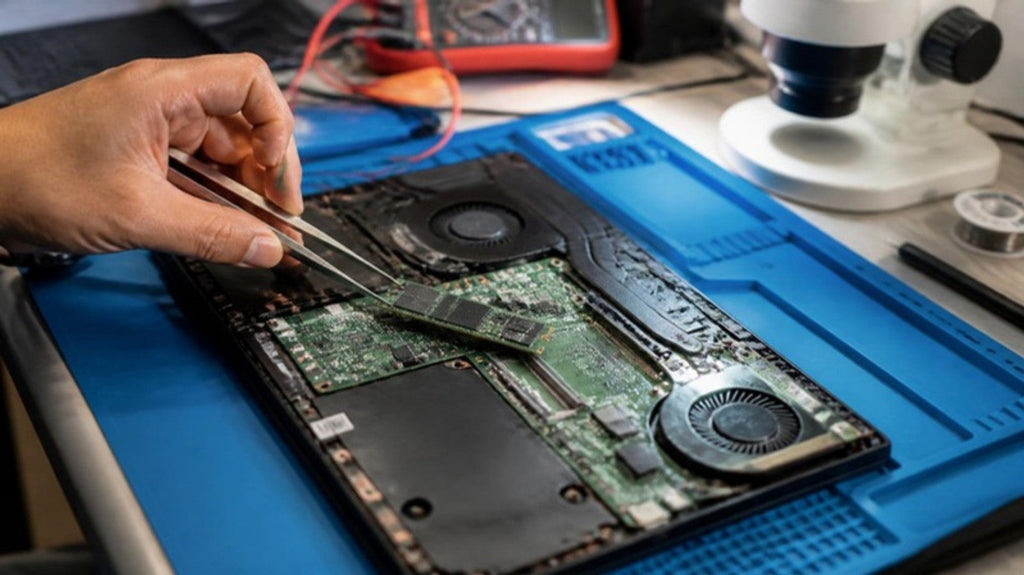
You fitted a bigger SSD, added RAM, swapped a tired battery or just cleaned the fan. Now the laptop does nothing, or the fans spin with a black screen. It's one of the most common situations we see at our Carrum Downs workshop, especially after Christmas. The good news: a lot of these are simple to fix. The less good news: some DIY slips cause real damage to the motherboard or logic board, and continuing to try to power the laptop on can make that worse.
Here's how to tell the difference.
First: don't panic, and stop pressing the power button
If there's any smell of burning, any heat from the bottom case, or any swelling or damage to the battery, stop. Unplug the charger and don't try again. Our burning-smell guide explains why.
Otherwise, give yourself 15 minutes to work through the checks below before opening anything again.
Five things that are usually not serious
It's "training" the new memory
Many newer computers need to learn the timings of new memory the first time they start. Dell confirms that after a DDR5 memory change, some of its desktops take roughly one to four minutes to boot. During that time the power light pulses and nothing appears on screen. Dell says the system "boots to the operating system if you give it some time". Other brands behave similarly. If you added or changed RAM, plug in the charger, press power once and wait at least five minutes before deciding it's dead.
The battery or charger needs waking up
If you disconnected the battery (as you should), some laptops won't power on from the battery alone until a charger is connected. Plug in the original charger, leave it for a few minutes, then try again.
Something isn't seated fully
RAM modules need to click fully into their latches. M.2 SSDs need to sit all the way into the slot before the screw goes in. A module that's 1 mm out is the most common "dead after upgrade" cause on Windows laptops.
The new SSD is empty or not set as the boot drive
A brand-new SSD has no operating system on it. If the laptop powers on (lights, fans, keyboard backlight) but shows a "no bootable device" message, a blinking cursor or, on a Mac, a flashing question-mark folder, the hardware may be fine. The drive just needs Windows or macOS installed, or the clone redone. If the drive doesn't show up in the BIOS at all, see SSD not detected.
The display cable is loose
If you hear the startup sound, see the keyboard light up or feel the fans, but the screen stays black, the display or backlight cable may not be fully connected. Try an external monitor. If that works, the problem is the screen connection, not the board. Our guide to a black screen when the laptop is still on goes further.
Safe checks you can do now
- Use the original charger, plugged straight into the wall (not through a power board).
- Wait five minutes after pressing power once, especially after a RAM change.
- Do a power reset. On many Windows laptops, holding the power button for 15–20 seconds with the charger unplugged drains residual power. Dell's manuals describe this as draining "flea power". On an Apple silicon Mac, press and hold power for 10 seconds, then press it again.
- Try an external monitor.
- If you're comfortable going back in: disconnect the charger and battery first, then reseat the RAM and SSD and check every cable you touched. Then reassemble and test.
- Refit the old part if you still have it. If the laptop starts with the old SSD or RAM, the new part is incompatible or faulty, which is good news for the board.
If none of that brings it back, stop there. Repeated attempts on a board with a short can overheat other components.
When it's damage, not a loose part
These are the faults we most often find on laptops that arrive dead after a home repair. Most are repairable at component level.
A torn flex cable or a broken connector
Laptop ribbon cables lock into tiny connectors with a flip-up latch or a press-fit cap. Dell's service manual warns to pull a cable "by its connector or its pull tab, not the cable itself". It's easy to rip the connector body off the board or tear the cable's contacts. A damaged battery, keyboard or power-button cable can leave the laptop completely dead. Often the connector can be replaced under a microscope.
A stray or wrong-length screw
The same Dell manual is blunt: "Leaving stray or loose screws inside your computer may severely damage your computer." A loose screw rolling across a powered board can short a power rail. A screw that's too long can drill into the board underneath and cut through layers of copper. In late 2025, Tom's Hardware covered a repair video showing a Razer gaming laptop board that had been damaged near a screw hole, needing more than ten board layers to be rebuilt by hand. Apple's own repair pages also warn that "both overtightened screws and loose screws can damage parts".
Static or a short while the battery was connected
Apple's Mac laptop repair guidance says to discharge the battery, keep it covered, and use an anti-static (ESD) wrist strap. Working with the battery connected means a dropped tool or a slipped probe can bridge two pins and blow a component. Sometimes that's a cheap fuse or protection chip; sometimes it's a power controller. Here's how we find shorts with current measurement and thermal imaging, the same method repair.wiki describes.
Bent pins, scratched traces and missing tiny parts
A slipped screwdriver or a spudger levered against the board can knock off components smaller than a grain of rice. We check the area you worked on under the microscope and compare it with the board's schematic, then replace what's missing by microsoldering.
What about your files?
On a laptop with a removable SSD, your data is usually safe on the old drive. Keep it and don't format it. On MacBooks and many thin Windows laptops the storage is soldered to the board, so a board fault can lock you out of your files. That's why we repair the board first, rather than replacing it, when data matters. See how professional data recovery works and our data recovery service.
Before you open your next laptop
- Back up first. Every time.
- Check that the part actually fits your model. Many laptops have soldered RAM or storage that can't be upgraded. Our SSD upgrade guide explains which can.
- Download the manufacturer's service manual for your exact model and follow the battery-disconnect step.
- Use the right screwdriver bits, keep screws in a labelled tray in the order they came out, and put each one back in the hole it came from.
- Open connectors with a plastic tool, never metal tweezers.
- If the laptop is under warranty, ask the manufacturer or retailer before opening it. Damage caused while opening it may not be covered.
Getting it checked in Carrum Downs
If your laptop or MacBook died after an upgrade, repair or clean, bring it, the charger and any parts you removed to Macrotech Solutions at 50 Titan Drive, Carrum Downs. We'll test the charger and battery, inspect every connector you touched under the microscope, measure the board's power rails, and tell you exactly what happened and what it'll cost to fix. No judgement: it happens to careful people too. A $50 diagnostic fee applies to hardware-related diagnosis and is credited toward the repair if you proceed.
We see customers from Frankston, Cranbourne, Seaford, Langwarrin, Skye, Lyndhurst, Patterson Lakes and across southeast Melbourne. See our laptop repairs and Mac repairs pages, book online, or call 03 8759 1801. We're open Monday–Friday 10 am–5 pm and Saturday 10 am–2 pm.
FAQs
My laptop shows lights and fans but no picture after a RAM upgrade. Is it broken?
Probably not. Wait at least five minutes for memory training, then try reseating the RAM. If an external monitor works, check the display cable.
I replaced my MacBook battery and now it won't turn on. What should I check?
Connect the original USB-C or MagSafe charger and leave it for 30 minutes. If it still won't start, the battery connector or a board-side power component may be damaged. Don't keep trying.
Can a loose screw really kill a laptop?
Yes. A stray screw can short a power rail on the board, and a screw that's too long can damage layers inside the board. Both are often repairable.
Will I lose my data?
If the SSD is removable, your data is usually on the old drive. If storage is soldered (most MacBooks), the board needs repairing before data can be accessed.
Is it worth repairing a board damaged during DIY repair?
Often, yes. A torn connector or a blown fuse is a much smaller job than a new board. We'll quote after diagnosis.
Macrotech Solutions is an independent repair centre and is not affiliated with Apple, Microsoft, Dell, HP, Lenovo or any other manufacturer. Product names are used only to identify the devices we repair. If your device is under warranty or AppleCare, contact the manufacturer first. A fixed $50 diagnostic fee applies to hardware-related diagnosis and is credited toward the repair cost if you proceed.