

Laptop Graphics Failing? Code 43, Driver Crashes and Artefacts: Driver, GPU or Motherboard?
Macrotech Solutions is an independent repair centre and is not affiliated with Apple, Microsoft, Dell, NVIDIA, AMD or any device manufacturer.
Your laptop has started freezing during games or video calls. The screen briefly goes black and comes back with a "display driver stopped responding" message, or Device Manager shows a yellow triangle with Code 43 beside your graphics card. Sometimes there are coloured blocks, checkerboards or stray lines across the picture.
These symptoms can come from something as simple as a corrupted driver, or from a graphics chip that is failing on the motherboard. This guide explains how to tell the difference, what you can safely try first, and what the realistic repair options are.
The symptoms that point to graphics, not the screen
A faulty screen and a failing graphics processor (GPU) can look similar, but there are clues. Graphics faults typically show up as:
- random coloured blocks, checkerboard patterns or "sparkles" (often called artefacts), especially in games or 3D apps
- the screen going black for a second, then returning with a "display driver stopped responding and has recovered" message
- blue screens mentioning video or TDR errors
- Device Manager showing Code 43 on the graphics adapter
- a dedicated graphics chip (NVIDIA or AMD) disappearing from Device Manager altogether
- problems that also appear on an external monitor
If you have steady lines, a dark area or flicker that changes when you move the lid, that is more likely a panel or cable issue. See our guide to laptop screen flickering and lines.
What "Code 43" actually means
Microsoft's documentation describes Code 43 as "Windows has stopped this device because it has reported problems" (Microsoft Learn). In plain terms, the driver controlling the device told Windows the hardware had failed in some way, so Windows switched it off.
That wording matters. Code 43 doesn't prove the chip is dead. It means the driver gave up on it. A corrupted or mismatched driver can trigger it, and so can a genuine hardware fault. Microsoft's recommended first step is to uninstall and reinstall the device.
"Display driver stopped responding and has recovered"
Windows has a safety feature called Timeout Detection and Recovery (TDR). According to Microsoft, if the graphics processor doesn't finish or respond to a task within two seconds, Windows resets the graphics driver instead of letting the whole computer freeze. You'll usually see the screen flicker or go black briefly, then the message appears. On NVIDIA systems, Event Viewer often logs it as "nvlddmkm stopped responding" (event ID 4101, per Dell Support).
One recovery now and then can be a driver or software issue. Repeated recoveries are a warning sign. Microsoft notes that if five or more GPU hangs happen within a minute, Windows stops with a blue screen (bug check 0x117) on the next one.
Five checks you can safely do at home
Back up your files first. If the problem is getting worse, the laptop may stop displaying at all.
1. Plug in an external monitor
Connect a TV or monitor via HDMI or USB-C. If the artefacts or lines appear on both screens, the problem is before the display: the graphics chip, its memory or the motherboard. If the external monitor is perfect, suspect the laptop panel or display cable instead.
2. Run the screen self-test (Dell and others)
Many laptops have a built-in screen test. On Dell laptops, Dell's instructions are to shut down, connect the charger, hold the D key and press the power button until solid colours appear. Dell says that if the colours look correct, the screen hardware is likely fine and the problem is probably the graphics driver, Windows or software. HP, Lenovo and others have their own diagnostics, so check your manufacturer's support page.
3. Clean-install the graphics driver
Download the current driver from your laptop manufacturer's support page (or from Intel, AMD or NVIDIA), uninstall the existing graphics driver in Device Manager, then reinstall. Avoid driver "booster" or updater tools from unknown publishers. If the fault started straight after a Windows or driver update, rolling back the driver is worth trying.
4. Check temperatures and airflow
Gaming and workstation laptops run their graphics chip hot. Blocked vents and dried thermal paste push temperatures up, which can cause crashes under load. If the fans are loud and the base is very hot before the crashes start, cooling is a likely contributor. See our guide to laptop overheating and shutdowns.
5. Note when it happens
Write down whether it happens at startup, only under load (games, video editing), only on battery, or only when the laptop is warm. This helps a technician narrow the fault far faster.
When it's the GPU or the motherboard
If a clean driver install doesn't help, artefacts appear on an external display, or the dedicated GPU keeps disappearing from Device Manager, the cause is most likely hardware on the motherboard. Common board-level causes include:
- Solder joints under the graphics chip. Large chips sit on hundreds of tiny solder balls, and repeated heating and cooling can crack these connections over time.
- Graphics memory (VRAM) faults, which often show as specific repeating patterns or artefacts.
- Power delivery faults. A failed component in the circuit that powers the GPU can stop it starting at all.
- Liquid or corrosion damage around the graphics area.
Integrated vs dedicated graphics
Many laptops have two graphics processors: one built into the main processor (integrated) and a separate NVIDIA or AMD chip (dedicated) for heavier work. When the dedicated chip fails, some laptops keep working on integrated graphics. The laptop seems "fine", but games or creative apps crash or run very slowly. Others won't display anything.
What about MacBooks?
Apple silicon Macs (M1 onwards) have graphics built into the main chip, so there is no separate GPU to fail on its own. Some older Intel MacBook Pro models, such as the 15-inch and 16-inch models from 2016–2019, have a separate AMD Radeon GPU, and graphics faults on those are board-level repairs. For Mac display symptoms, see MacBook black screen but still on.
Repair options: what's realistic
Once a hardware fault is confirmed, the options are usually:
- Repair the supporting circuitry. If a failed power component or damaged area is the cause, this is a component-level repair using microsoldering.
- Reball or replace the graphics chip. The chip is removed, cleaned and refitted on fresh solder, or replaced. This needs specialist equipment and isn't economical on every laptop.
- Replace the motherboard. Sometimes the only practical option, depending on part availability and price.
- Recover your data and replace the laptop if repair costs approach the laptop's value. Your files are stored on the SSD, so a graphics fault doesn't usually affect your data.
Be cautious of "reflow" fixes that simply heat the chip in place. They may make a laptop work for a while, but because the underlying cause isn't addressed, the fault often comes back. Our repair or replace guide can help you weigh it up.
What not to do
- Don't bake the motherboard in an oven or use a heat gun. It can damage other components and makes professional repair harder.
- Don't disable TDR in the registry to hide the crashes. It doesn't fix the cause.
- Don't keep gaming on a laptop that crashes repeatedly if your files aren't backed up.
How we diagnose graphics faults at Carrum Downs
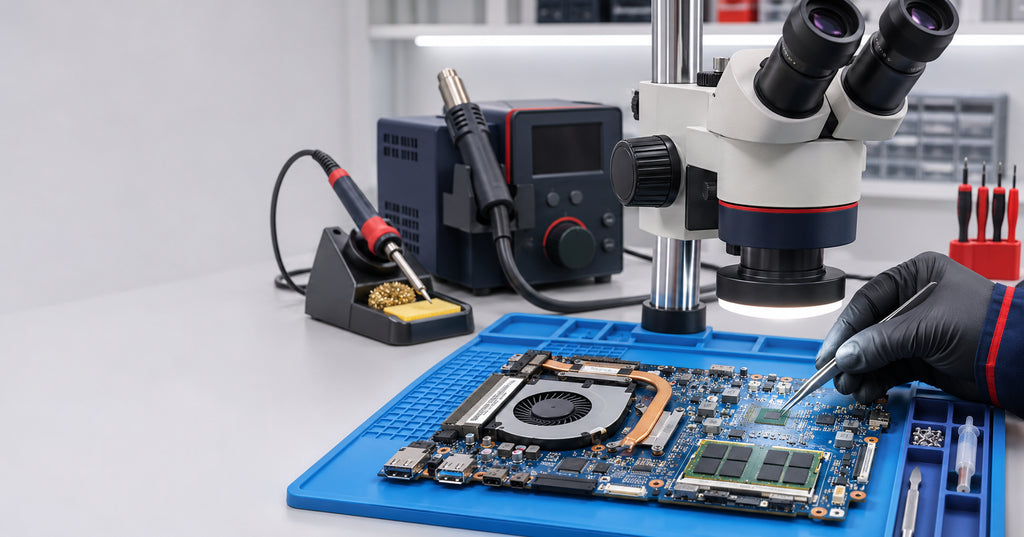
At our Carrum Downs workshop we start by confirming whether the fault follows the internal screen or also appears externally. We test with a known-good driver and operating system, check temperatures under load, and then inspect the board under a microscope. We measure the power rails feeding the graphics chip and memory before recommending any repair, and we'll tell you if a repair isn't worth it on your laptop. A $50 diagnostic fee applies to hardware-related diagnosis and is credited toward the repair if you proceed.
We see laptops from Carrum Downs, Frankston, Cranbourne, Seaford, Langwarrin, Skye, Patterson Lakes, Lyndhurst and across south-east Melbourne. Visit us at 50 Titan Drive, Carrum Downs, call 03 8759 1801, or book a diagnostic online. See our laptop repairs page for more. Hours: Monday to Friday 10 am to 5 pm, Saturday 10 am to 2 pm.
FAQs
Does Code 43 mean my graphics card is dead?
Not necessarily. It means the driver reported a problem and Windows stopped the device. Reinstall the driver first. If Code 43 returns on a clean driver, a hardware fault is more likely.
Why does my screen go black, then show "display driver stopped responding"?
That is Windows' Timeout Detection and Recovery resetting the graphics driver after the GPU didn't respond within two seconds. Occasional events can be software. Frequent ones suggest overheating or hardware.
Can a laptop GPU be repaired?
Often, depending on the fault. Power-circuit faults can be repaired at component level. Chip reballing or replacement is possible on many models but isn't always economical.
Will I lose my files if the graphics chip fails?
Usually not. Your data is on the SSD, which is separate from the graphics chip. Back up while the laptop still works, or ask about data recovery.
Do MacBooks have this problem?
Apple silicon Macs have graphics built into the main chip. Some 2016–2019 Intel MacBook Pro models have a separate AMD GPU that can develop board-level faults.
Macrotech Solutions is an independent repair centre and is not affiliated with Apple, Microsoft, Dell, NVIDIA, AMD or any device manufacturer. Brand names are used only to identify products. A fixed $50 diagnostic fee applies to hardware-related diagnosis and is credited toward the repair cost if you proceed.