

Mac Slow or Wi-Fi Dropping After macOS Tahoe? Here's What's Happening
Mac Repair Guide
If your Mac has felt sluggish, lost its Wi-Fi connection, or started behaving oddly since upgrading to macOS Tahoe (macOS 26), you are far from alone. Apple's 2025–2026 operating system has delivered a significant visual and performance overhaul — but it has also arrived with a well-documented trail of post-upgrade headaches.
This guide explains what is happening, which problems typically sort themselves out, and which ones may point to something that needs professional attention. Macrotech Solutions serves Mac owners across Carrum Downs, Frankston, Langwarrin, Seaford, Cranbourne and the wider southeast Melbourne region.
What Is macOS Tahoe?
macOS Tahoe — officially macOS 26 — is Apple's current Mac operating system, released in 2025 and now updated to version 26.5.1 (released 1 June 2026, primarily to fix an unexpected shutdown bug affecting M5 Macs in enterprise environments).
Tahoe introduced a major visual redesign including the "Liquid Glass" translucency effects Apple rolled across all of its 2025–2026 platforms, along with deeper Spotlight and Photos indexing, expanded Apple Intelligence features, and improvements to AirPlay, AirDrop and Continuity Camera. Those are useful additions — but the upgrade has also caused real problems for a meaningful number of users.
The Most Common macOS Tahoe Problems
1. Mac Is Very Slow Immediately After Upgrading
What users report: The Mac crawls after installation. Apps take much longer to open, everything feels laggy, and the fan runs constantly.
Why it happens: After a major macOS upgrade, the system performs extensive background indexing — Spotlight re-indexes every file on the drive, Photos rebuilds its library database, and several system processes run diagnostic tasks. Tahoe also introduced more GPU-intensive transparency and blur effects ("Liquid Glass"), which can affect responsiveness on older Macs with limited graphics memory.
When it resolves: In most cases, the sluggishness settles within 24–48 hours once background indexing completes. Restarting the Mac once or twice can help speed this up.
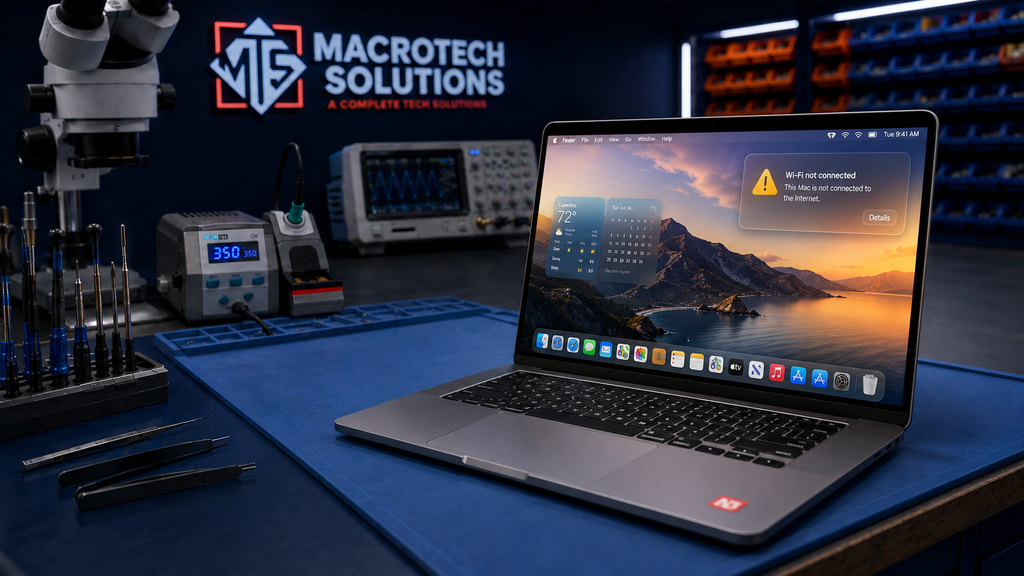
2. Wi-Fi Dropping or Not Connecting After macOS Tahoe
What users report: Wi-Fi disconnects randomly, fails to reconnect after sleep, drops to the 2.4 GHz band unexpectedly, or completely fails to assign an IP address — resulting in a 169.254.x.x self-assigned address that means no internet access.
Why it happens: macOS Tahoe introduced changes to how wireless background services, power management, and Location Services interact with the Wi-Fi adapter. The AirPlay/AirDrop AWDL background protocol can interfere with the primary Wi-Fi connection on certain router configurations. Users on Ubiquiti UniFi routers in particular have reported the 169.254 address issue consistently across versions 26.0 through 26.2.
Workarounds to try
- Forget and re-join your network. Go to System Settings → Wi-Fi, click the network name, then "Forget This Network." Rejoin manually.
- Renew your DHCP lease. In System Settings → Wi-Fi → Details → TCP/IP, click "Renew DHCP Lease."
- Disable Wi-Fi Calling and Handoff temporarily. In System Settings → General → AirDrop & Handoff, toggle these off to reduce AWDL background activity.
-
Delete Wi-Fi preference files. In Finder, press Cmd+Shift+G and navigate to
/Library/Preferences/SystemConfiguration/. Deletecom.apple.airport.preferences.plistandNetworkInterfaces.plist, then restart. - Create a fresh network location. In System Settings → VPN & Filters, create a new Location, then reconnect to your network.
3. Bluetooth Devices Not Pairing or Disconnecting
What users report: AirPods, keyboards, mice and other paired Bluetooth devices fail to connect after upgrading, require re-pairing repeatedly, or disconnect during use.
Why it happens: macOS Tahoe's Bluetooth stack has shown compatibility issues with some older peripherals. Apple's Wi-Fi and Bluetooth share the same physical wireless module on all MacBooks, so a firmware issue affecting one can sometimes affect the other.
Workarounds to try
- Remove the affected device from the Bluetooth menu, restart the Mac, and re-pair from scratch.
- On newer MacBooks, reset Bluetooth by holding Option + Shift while clicking the Bluetooth menu bar icon, then select "Reset the Bluetooth module."
- Ensure your peripherals' own firmware is up to date via the manufacturer's app or support page.
4. Touch ID Not Responding or Appearing Inconsistently
What users report: Since upgrading to macOS Tahoe, some users find Touch ID only works intermittently — it appears as a login option after sleep most of the time, but sometimes disappears entirely.
Why it happens: This appears to be a software-level bug in the interaction between the Secure Enclave and macOS Tahoe's updated authentication system. Multiple user reports on Apple Communities confirm intermittent Touch ID issues across some Tahoe versions.
Workaround
- Re-enrol your fingerprint(s) in System Settings → Touch ID & Password. Delete existing fingerprints, restart, then add them fresh.
5. Apps Crashing or Behaving Erratically
What users report: Specific apps crash on launch or repeatedly quit; some apps exhibit UI glitches or unexpected behaviour after upgrading.
Why it happens: macOS Tahoe introduced a new visual rendering engine for Liquid Glass effects, and not every third-party app has been updated to accommodate it.
What to do: Check for updates in the App Store and via each app's own update mechanism. If the issue persists, check the developer's release notes and support page for Tahoe-specific guidance.
Will a macOS Re-install Fix These Problems?
A re-install of macOS Tahoe (without erasing the drive) often resolves persistent performance and connection problems by replacing corrupted system files. On Apple Silicon Macs, hold the power button at startup to access Recovery Mode. On Intel Macs, hold Cmd+R at startup.
However, a re-install will not fix:
- A failing or nearly full SSD
- Hardware-level Wi-Fi/Bluetooth module faults
- Logic board issues causing erratic behaviour
- RAM problems manifesting as instability
If a clean re-install does not resolve the issue, a proper hardware diagnostic is the next step.
Older Macs and macOS Tahoe: Is Your Hardware Up to It?
macOS Tahoe supports Mac models from 2019 onwards (specific cutoffs vary by model). However, being on the supported list does not guarantee a smooth experience on every machine.
If you have a 2019 or 2020 MacBook Air or MacBook Pro with 8 GB of RAM and an Intel processor, you may find macOS Tahoe's Liquid Glass effects and background AI features noticeably more demanding than previous macOS versions. Ensuring the drive is not nearly full and — where the model allows — upgrading storage can help considerably.
If your Mac is from 2018 or earlier, it will not run macOS Tahoe at all. For 2019 models that are struggling, a conversation about whether the hardware is still right for your needs is worthwhile.
When Should You Bring Your Mac In?
Bring your Mac to a technician if any of the following apply:
- Slowness has persisted for more than three days after upgrading
- Wi-Fi or Bluetooth issues continue despite all software workarounds
- The Mac is not starting up at all, or loops through a progress bar
- You are seeing kernel panics or repeated unexpected restarts
- Touch ID has completely stopped working
- The Mac is running very hot and the fan is continuously audible
- You are concerned about your data and want the drive assessed before attempting anything further
Frequently Asked Questions
My Mac is really slow after the macOS Tahoe update. Should I be worried?
In most cases, no. The Mac is completing background indexing that typically finishes within 24–48 hours. If the slowness persists beyond three days, or Activity Monitor shows a process at near-100% CPU continuously, bring it in for a professional check.
Wi-Fi keeps dropping on my Mac since I updated to Tahoe. Is this a known issue?
Yes. macOS Tahoe 26.x has well-documented Wi-Fi instability reports — particularly around IP assignment failures (169.254.x.x addresses) and random disconnections. Start by forgetting and re-joining your network, and renewing your DHCP lease. If the issue persists, contact Macrotech for a diagnostic.
Will Apple fix these issues in a future update?
Apple releases incremental updates to macOS Tahoe regularly. Many of the issues described above have been partially addressed between versions 26.2 and 26.5.1. Keeping your Mac updated is recommended. Some hardware-related faults, however, will not be resolved by a software update.
Is it safe to upgrade to macOS Tahoe now?
For most users, yes — particularly on Macs from 2021 onwards with Apple Silicon. If you have an older Intel Mac or rely on specific professional software that has not yet been tested for Tahoe compatibility, waiting for a further point release is a sensible precaution.
Can Macrotech help with Mac software problems caused by the upgrade?
Absolutely. We can diagnose whether the issue is software or hardware, perform a macOS re-install if needed, and advise on whether your Mac's hardware is well-suited to running macOS Tahoe long-term. Call 03 8759 1801 or book online.
Related Macrotech Services & Pages
Is Your Mac Still Acting Up After the Tahoe Update?
Macrotech Solutions offers same-day diagnostics at 50 Titan Drive, Carrum Downs. We'll identify whether it's a software fix or something deeper — with a written quote before any work begins and no-fix-no-fee assurance.
Book a Service Online Call 03 8759 1801Mon–Fri 10am–5pm · Sat 10am–2pm · 50 Titan Drive, Carrum Downs VIC 3201
Macrotech Solutions is an independent repair centre and is not affiliated with Apple Inc., Apple Authorised Service Providers, or any device manufacturer. All trademarks are the property of their respective owners. macOS Tahoe and related product names belong to Apple Inc. Information in this article is current as of 30 June 2026.